eyecatch-IT-america-Blog

Windows10でLinuxの仮想を構築する方法

1. WSL2のインストールを行う。

Runs as Administrator(管理者として実行)で PowerShellを起動し、WSL2のインストールを行う。

dism.exe /online /enable-feature /featurename:Microsoft-Windows-Subsystem-Linux /all /norestart

2. 仮想マシンを有効

仮想マシンの機能を有効にする。

dism.exe /online /enable-feature /featurename:VirtualMachinePlatform /all /norestart

3. Virtual 環境の設定確認

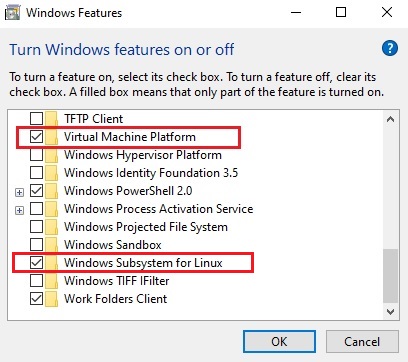
Windowsマークをクリックし、Enable or disable Windows features (Windows の機能の有効化または無効化)とタイプする。下記の赤囲みにチェックが入っているか確認する。
4. PCを再起動

PCを再起動します。

5. 下記のURLから、「WSL2 Linux カーネル更新プログラム パッケージ」をインストールする。

インストール用のURLはこちら【外部リンク】

6. WSL2をDefaultに変更

Runs as Administrator(管理者として実行)で PowerShellを起動し、WSL2をDefaultに変更する。
python

【Python】Windows10で仮想環境【Virtual Environment】を作成できなかった場合の対応方法

Python用の仮想環境【Virtual Environment】をWindows10で構築しようとした際に下記のようなエラーが発生したときの対処法をご紹介いたします。

env\scripts\activate : File C:\Python\python-test-Flask\env\scripts\activate.ps1【フォルダー名】 cannot be loaded because running scripts is disabled on
this system. For more information, see about_Execution_Policies at https:/go.microsoft.com/fwlink/?LinkID=135170.
At line:1 char:1
+ env\scripts\activate
+ ~~~~~~~~~~~~~~~~~~~~
+ CategoryInfo : SecurityError: (:) [], PSSecurityException
+ FullyQualifiedErrorId : UnauthorizedAccess

対応方法

1. Windowsマークをクリックします。

2. 「Windows PowerShell」とタイプします。

3. 「Windows PowerShell」というアプリが表示されるので、右クリックで「Run as Administrator」を選択します。

4. 下記のコマンドをWindows PowerShell上にタイプし、正しいDirectlyに移動します。

cd C:\Python\python-test

5. 下記のコマンドをPowerShell上にタイプします。

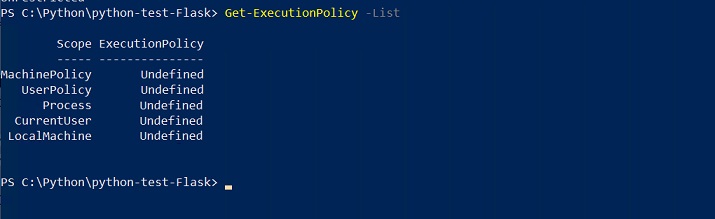
Get-ExecutionPolicy -List

*この時点では、全ての項目がUndefinedになっています。

6. 下記の2つのコマンドを赤囲みの部分にタイプします。

Set-ExecutionPolicy Unrestricted -Scope Process

set-executionpolicy remotesigned

7. Windows PowerShell上が、下記の画像のようになっていることを確認する

8. 今まで発生していたエラーがなくなりました!!

これで問題解決です!